Markdown is a simple system of formatting, used on websites such as Wikipedia or GitHub. It uses unobtrusive punctuation characters to create headings and sub-headings, bold and italic text, lists, tables, etc.
Webtrees uses a CommonMark implementation and supports a subset of the markup. It is optionally supported in note records on a per-tree basis.
Note: For the Markdown Image Support and the additional Markdown Extensions the MarkdownFactory class needs to be extended by this module. This replacement class also fixes fisharebest/webtrees#4841, so that a pre-formatted markdown block is not rendered as a single line anymore.
1 - Markdown Image Support
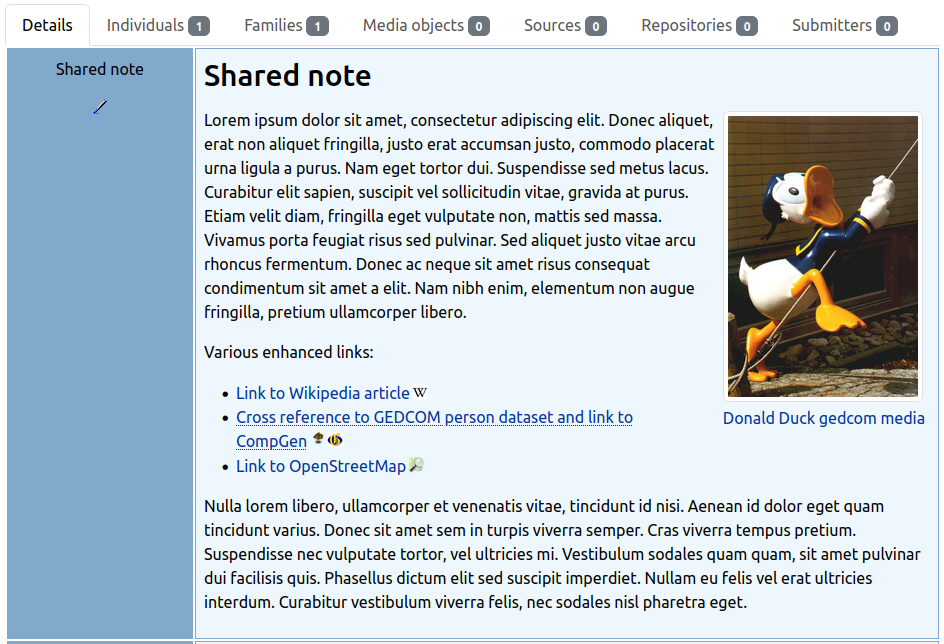
Embed images from GEDCOM media records or public folder in notes
This feature allows you to easily embed images from GEDCOM media records (which reside behind the media firewall) or from the public directory into notes. If restriction rules apply to the record, instead of the image, a message is displayed.
Syntax:


Technically the images are packed into a div container together with an image subtitle — which is also a link to the media data set for GEDCOM objects. The display can be customized as required using the standard CSS classes or per-image additional CSS classes (e.g. float-start or float-end from webtrees vendor.css).
2 - Markdown Editor
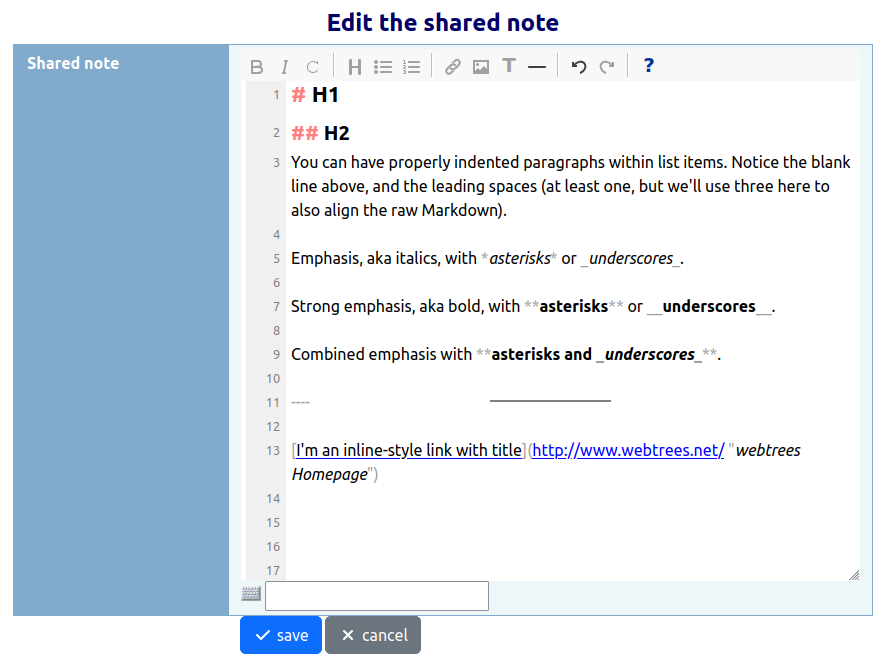
Visual markdown editor (TinyMDE) for note textareas
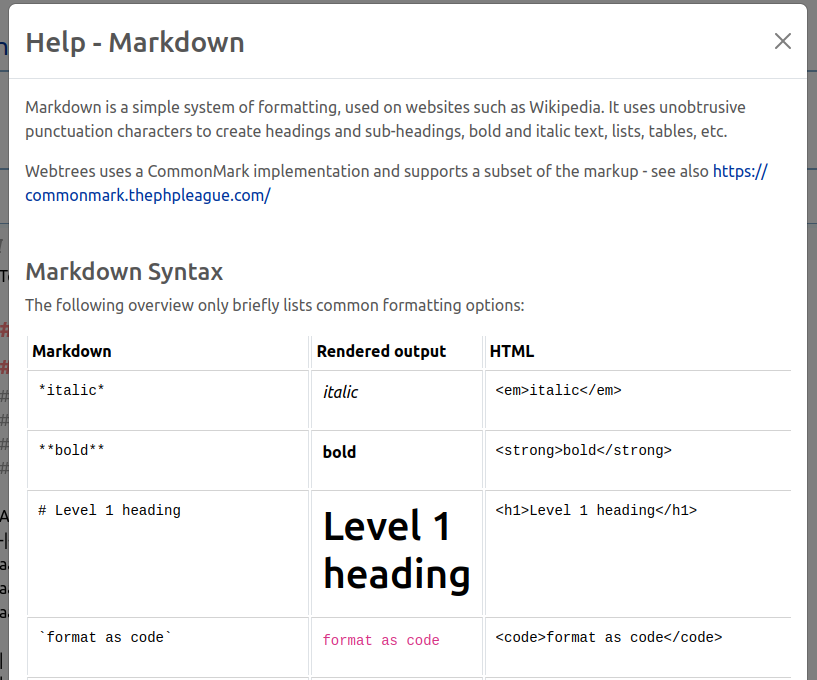
Besides syntax highlighting it ships with an icon bar for common format commands, a help popup and line numbering.
Note: Unfortunately, the on-screen keyboard does NOT work as before with the previous text input field. The selected characters end up as an intermediate step in the small text field below the Markdown editor and then must be copied manually to the desired position.
Warning: Please keep in mind when using these extensions, you are deviating from the smallest common markdown dialect set. If the library used to render markdown in HTML needs to be changed for any reason, there is a possibility that not all of the extended markup used here will be supported (see also #32). Since the markup is not intrusive, the impact should not be serious — of course, it’s a minor drawback.
The package League\CommonMarkdown used for processing Markdown texts offers several useful extensions that can be activated optionally:
You can activate all or a few selected of these extensions. As far as possible they are of course integrated with the markdown editor and you find additional information in the markdown help.
Footnotes
Footnotes can be placed near their references (there can be one or many references to one footnote) or everywhere you want. For the overview, it is advisable to place them at the bottom. When rendering, the footnote container resides at the end of the content.
Table of Contents
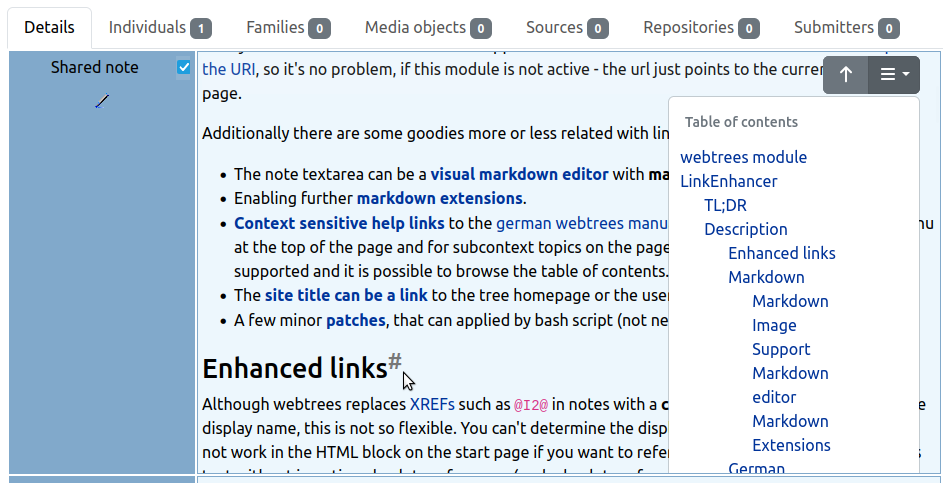
If your text is structured with headings, it is a good choice to activate the table of contents extension. The table of contents is generated automatically and included into the content above the very first heading or instead of a placeholder.
4 - Table cell height control
For longer markdown note texts it’s sometimes a pain to scroll through if you are interested in the next facts beneath them at the moment. This feature should come in handy here: By activating the checkbox in the top right corner of the title cell (first table column), the maximum height of the content cell with the long note is set to about 80% of the viewport height. This makes the content itself scrollable.
Where applicable, the function can be activated by default (or simply made available) and can also be deactivated independently.
In combination with the table of contents extension (position = dropdown), you can navigate through the text easily — assuming the text is structured with headings.
You can decide if the checkbox is always visible or hidden until you hover the fact title cell with the mouse cursor. If the text length of the content cell doesn’t exceed the defined maximum height, the checkbox can not be activated.