Installation
- Copy the module folder to
modules_v4/cronjob/(ZIP install works too). The cron library ships inside the module — nothing to fetch. - Open webtrees once (any page as an admin) so the module’s
boot()creates its tables. - Install the trigger (classic cron, systemd timer, or Windows Task Scheduler — the module’s admin page generates the block for your OS with the paths of this installation already filled in).
- Trigger installation (once) — see below.
- Create your first job in the admin UI or configure and activate registered jobs.
Trigger installation (once)
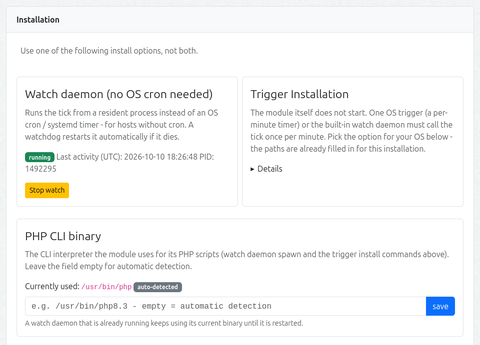
Important — PHP CLI binary: the admin page’s Installation accordion shows which PHP CLI interpreter is currently resolved (badge: auto-detected / manual path) and lets you pin a manual path. The chosen binary is used for the watch daemon spawn and in all generated trigger commands.
It is important to check whether your web server provides a PHP-CLI binary (SAPI) and whether the module is configured correctly to use it. Otherwise, tick will not work.
The tick is designed to run every 60 seconds. It makes an inventory of cron jobs, commands and events, triggers events and processes the task queue.
Pick one of the options shown in the module’s admin page:
Option A — classic cron
One line in the web server user’s crontab, runs every minute:
* * * * * cd "/path/to/webtrees" && mkdir -p data/cronjob && "/usr/bin/php" modules_v4/cronjob/cli/tick.php cron:tick >> "/path/to/webtrees/data/cronjob/tick.log" 2>&1
Option B — systemd timer
Two unit files (also shown in the admin page):
# /etc/systemd/system/cronjob-tick.service
[Unit]
Description=webtrees cronjob module tick (runs due maintenance jobs)

[Service]
Type=oneshot
User=<webserver-user>
WorkingDirectory="/path/to/webtrees"
ExecStart="/usr/bin/php" ./modules_v4/cronjob/cli/tick.php cron:tick
# /etc/systemd/system/cronjob-tick.timer
[Unit]
Description=Run the webtrees cronjob tick every minute

[Timer]
OnBootSec=1min
OnCalendar=*:*:00
Persistent=true

[Install]
WantedBy=timers.target
sudo systemctl daemon-reload
sudo systemctl enable --now cronjob-tick.timer
Option C — watch daemon (no OS timer)
Click Start watch on the admin page. A resident process runs the tick every 60 seconds, and a page-load watchdog respawns it if it dies. Use it when the host has no cron and no systemd access, or for testing — on Windows hosts this is the simplest option.
stateDiagram-v2
    [*] --> Stopped: (initial)
    Stopped --> Running: Start watch (Admin-UI)
    Running --> TickLoop: tick every 60 s
    TickLoop --> TickLoop: run job
    TickLoop --> Dead: ⚠ process dies
    Dead --> Running: 🔄 Watchdog respawn<br/>(next page load<br/>Cooldown 5 min)
    Running --> Stopped: Stop watch
    Dead --> Stopped: Stop watch<br/>(no respawn)

    note right of Running
        🔒 holds data/cronjob/watch.lock
        🆔 PID visible in Admin-UI
        🛡 survives FPM-Worker-Recycle (setsid)
    end note
Option D — Windows Task Scheduler
The admin page generates the XML with paths already filled in. Save it as wt-cronjob-tick.xml (UTF-8) and run schtasks /Create /F /XML wt-cronjob-tick.xml once in an elevated prompt.